What is MQTT?
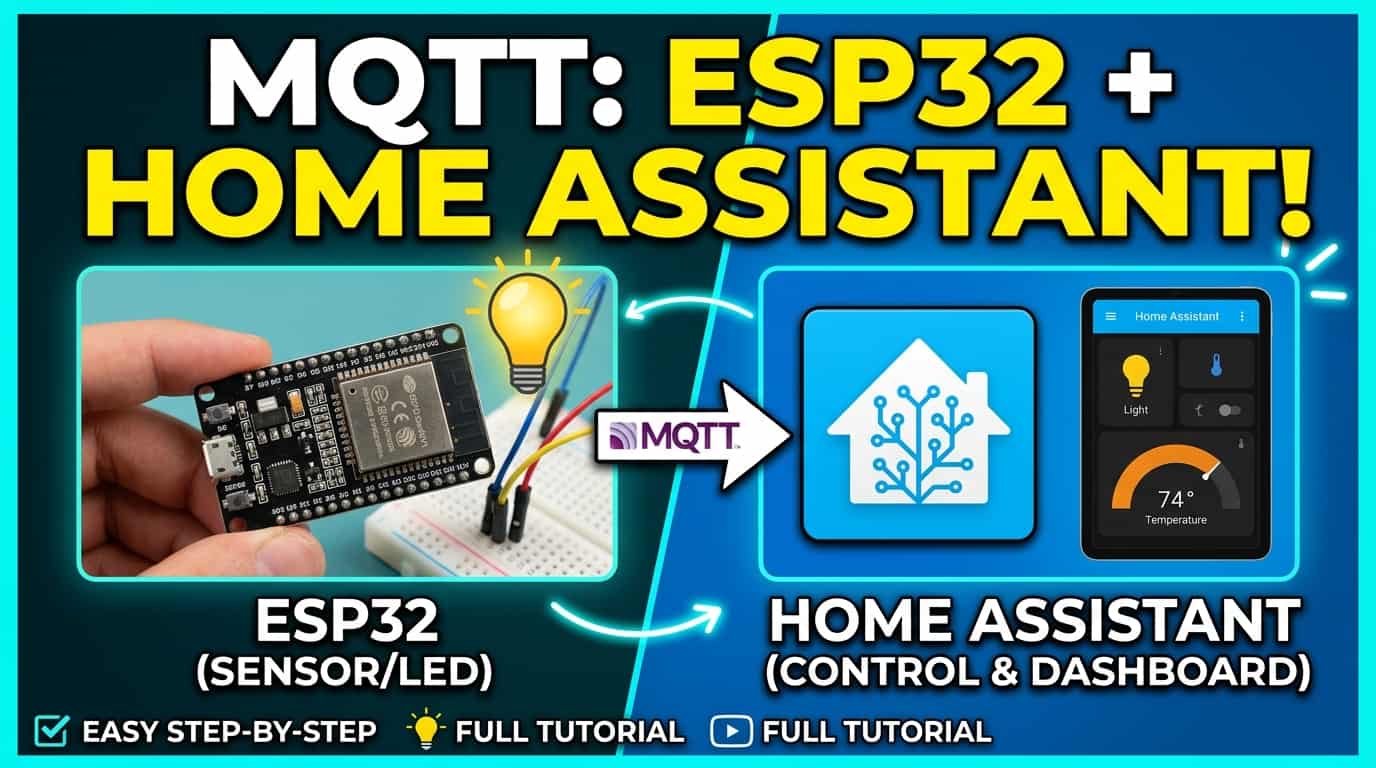
MQTT (Message Queuing Telemetry Transport) is a lightweight publish‑subscribe messaging protocol designed for low‑bandwidth, unreliable networks. An ESP32 with a temperature sensor publishes readings to a topic. Home Assistant subscribes to that topic and displays the data.
Three main components:
-
Broker – the server that routes messages (we’ll use Mosquitto on Home Assistant)
-
Publisher – the ESP32 that sends data
-
Subscriber – Home Assistant, Node‑RED, or another device that reads data
Step 1: Setting Up the Mosquitto Broker (Home Assistant) In Home Assistant, go to Settings → Add‑ons → Add‑on Store.
Search for Mosquitto broker → click Install → then Start.
Crucial step: After installation, open the Configuration tab of the Mosquitto add‑on:
Set logins: true
Under users, add your MQTT credentials (create a dedicated user – never use your admin credentials in ESP32 code):
yaml users:
- username: mqtt_user password: mqtt_pass Click Save, then go to the Info tab and Restart the add‑on.
Still in Home Assistant, go to Settings → People and create a new user (e.g. mqtt_user) for MQTT. Give it no special permissions – it only needs to authenticate with the broker.
✅ Your broker is now running at HOME_ASSISTANT_IP:1883 with authentication enabled.
Step 2: Installing the Required Library in Arduino IDE Open Arduino IDE.
Go to Sketch → Include Library → Manage Libraries.
Search for PubSubClient by Nick O’Leary → install the latest version (≥ 2.8). Avoid the “MQTT” library by Joel Gaehwiler – it’s not needed here.
Step 3: Wiring an LED (if your board has no built‑in LED) Most generic ESP32‑WROOM boards do not have a usable LED_BUILTIN. We’ll use an external LED on GPIO 5:
Connect an LED’s anode (long leg) to GPIO 5 via a 220 Ω resistor.
Connect the cathode (short leg) to GND.
If your board does have a built‑in LED (e.g. DOIT ESP32 DEVKIT V1 uses GPIO2), you can change the pin accordingly.
Step 4: Complete ESP32 MQTT Code (with improvements) Copy the code below, fill in your Wi‑Fi and MQTT credentials, and upload it to your ESP32.
💡 Tip
Note about millis() rollover: The now - lastPublish method safely handles the rollover after ~50 days because it uses unsigned arithmetic. No extra code needed
Step 5: Adding a Real Temperature Sensor (Optional but Recommended) To publish actual temperature, add a DHT22 or DS18B20. Example with DHT22:
Install the DHT sensor library by Adafruit in Arduino IDE.
Connect the DHT22 data pin to GPIO 4 (with a 10kΩ pull‑up resistor).
Modify the code:
Step 6: Home Assistant YAML Configuration Add the following to your configuration.yaml file. Watch the indentation – it must be exact.
-
The switch will now show the correct on/off state because the ESP32 publishes to home/esp32/status whenever the LED changes.
-
retain: true for the switch ensures that Home Assistant remembers the last state after a restart.
After editing, check your configuration:
-
Go to Developer Tools → YAML in Home Assistant.
-
Click Check Configuration.
-
If valid, click Restart (or Quick Reload for MQTT entities).
Step 7: Testing with MQTT Explorer (Invaluable for Debugging) Download MQTT Explorer (free, cross‑platform) from mqtt-explorer.com.
1- Connect to your broker:
-
Host: HOME_ASSISTANT_IP
-
Port: 1883
-
Username / Password: the MQTT user you created.
2- You will see all topics in real‑time:
-
home/esp32/temperature – should update every 30 seconds.
-
home/esp32/status – changes when you toggle the switch from HA.
-
home/esp32/command – publish ON or OFF manually to test.
⚠️Tip: Retained messages appear with a small bookmark icon. Right‑click any topic → “Delete retained message” if you want to clear old data.
Common Issues and Fixes Error / Symptom Likely Cause Solution rc=-2 in serial monitor Broker IP wrong or broker not running Check HA IP, ensure Mosquitto add‑on is started. rc=-4 timeout Firewall blocking port 1883 On HA machine: Windows – allow inbound 1883; Linux – sudo ufw allow 1883. ESP32 keeps reconnecting Using delay() in loop() Avoid long delays – they block client.loop(). Use non‑blocking timing as shown. HA shows no temperature YAML indentation error Use the exact indentation above. Check with Developer Tools → YAML. Switch in HA doesn’t reflect LED state ESP32 not publishing to home/esp32/status Ensure the callback() publishes the state (see improved code). Multiple ESP32s disconnect each other Same client ID Each ESP32 needs a unique ID – use ESP32- + random hex as in the code.
Next Steps
Add more sensors (humidity, motion, light) by publishing to new topics like home/esp32/humidity.
Use retained messages wisely – keep them for persistent values (temperature, switch states) but avoid them for frequent readings unless needed.
Secure your broker – change the default MQTT port and enable TLS if exposing to the internet.
Explore automation – create automations in Home Assistant that react to your ESP32’s MQTT messages.
Final Thoughts
You now have a complete, production‑ready MQTT setup: broker, ESP32 publisher/subscriber, and Home Assistant integration – all with the common pitfalls addressed. The key improvements from basic tutorials are:
Correctly configured Mosquitto add‑on with user logins.
A unique client ID to avoid disconnections.
Proper state reporting for the HA switch.
Working YAML with correct indentation.
Real‑time debugging with MQTT Explorer.
Go ahead and build your smart home, one MQTT message at a time. If you get stuck, check your topic names, retained flags, and firewall settings – those three things solve 90% of beginner problems. Happy making!