

Motion
Interfacing A3144 Motion with ESP32 DevKit
What is the A3144?
The A3144 is a digital Hall-effect switch: it detects a magnetic field and changes its OUT pin between a low state and a released state. It is useful for contactless RPM counters, wheel-speed sensing, door and lid detection, position switches, and simple motor feedback. Unlike a reed switch, it has no moving contacts to wear out. Unlike an analog Hall sensor, it is intended to behave like a switch rather than provide a continuously varying magnetic-field measurement.
This guide covers the bare three-lead A3144, its open-collector output, safe wiring, and practical integrations with Arduino Uno and ESP32. Different manufacturers and inexpensive modules can vary, so use the markings and datasheet for the exact part you own.
Warning
**Electrical limit:** the commonly documented bare A3144 operates from approximately 4.5–24 V. Do not assume a bare sensor is a 3.3 V device. On an ESP32, power the sensor from 5 V, connect grounds, and pull OUT up to 3.3 V with an external resistor. This is safe only when OUT is truly open-collector and the module does not also pull the line up to 5 V.
A3144 specifications
- Sensor type
- Digital Hall-effect switch
- Supply voltage (bare device)
- About 4.5–24 V DC; check exact datasheet
- Output
- Open collector, active LOW
- Output HIGH
- Requires an external or internal pull-up
- Magnetic response
- Switching depends on field strength and pole orientation
- Interface
- One digital signal; no I²C/SPI protocol
- Common uses
- RPM, wheel speed, position, lid/door state
- Board compatibility
- 5 V Arduino; 3.3 V GPIO boards with correct pull-up
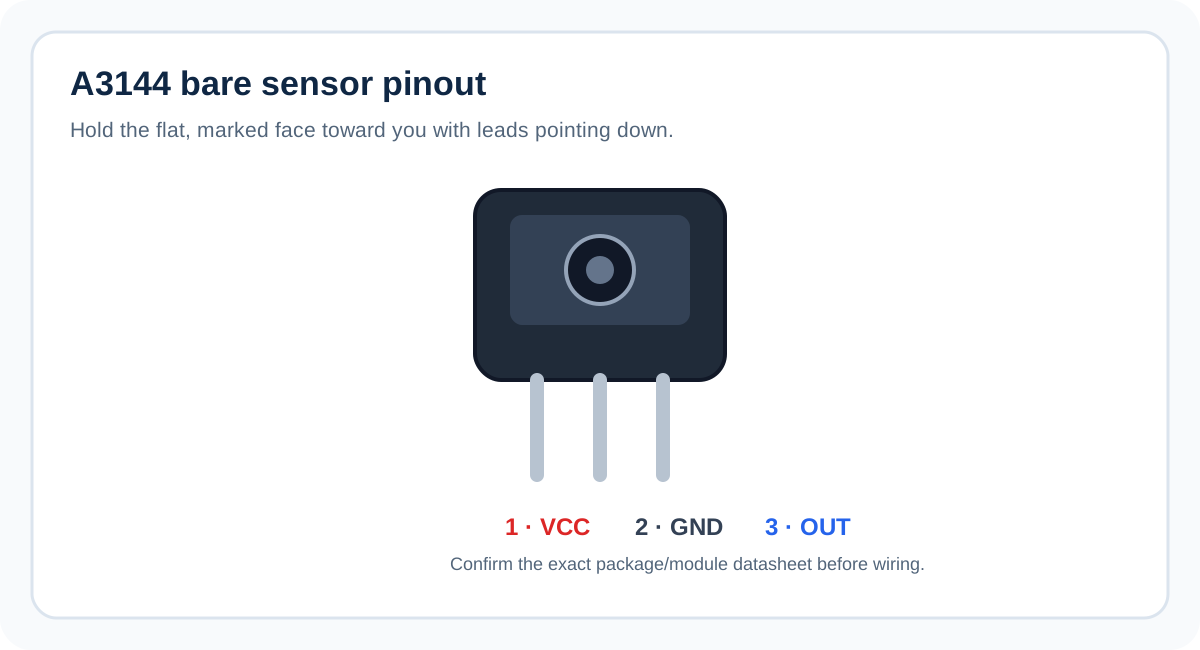
Bare A3144 pinout
| Pin | Name | Function |
|---|---|---|
| 1 | VCC | Positive supply. Use the voltage specified for the exact device; commonly 5 V in these projects. |
| 2 | GND | Ground reference. Connect to the microcontroller ground. |
| 3 | OUT | Open-collector digital output. Pull it up to the logic voltage expected by the board. |
Swipe sideways to see every column →
The pin numbering above follows the common A3144E three-lead package convention when the marked/flat face is toward you and the leads point downward. Package variants, clones, and breakout boards may arrange pins differently. Check the exact part’s datasheet or PCB silkscreen instead of relying on package appearance alone.
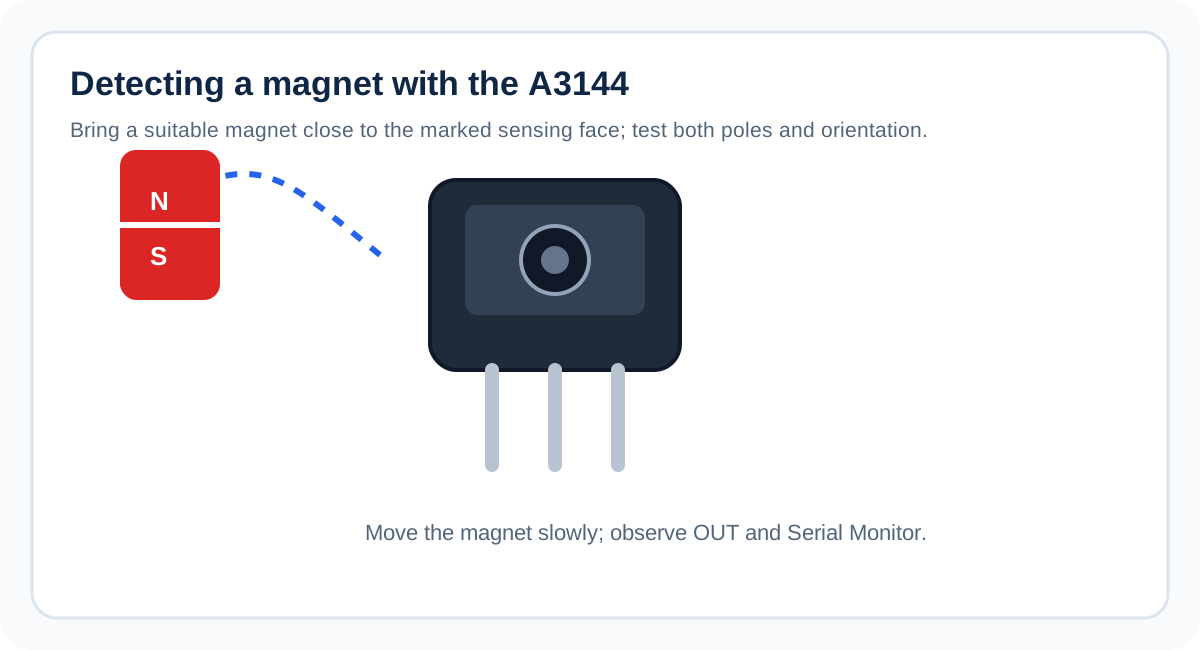
How the A3144 detects a magnet
The Hall element responds to magnetic flux passing through the sensing region. Internal circuitry compares the field with a switching threshold and controls an output transistor. When the required magnetic pole and field strength are present, the transistor conducts and pulls OUT toward GND. When the field is absent or below the release threshold, the transistor stops conducting and OUT is released.
Because OUT is open collector, the sensor can pull the line LOW but does not actively drive it HIGH. A pull-up resistor supplies the HIGH level. On an Arduino Uno, INPUT_PULLUP enables the board’s internal pull-up and is normally adequate for a short, simple connection. On an ESP32, use a pull-up to 3.3 V; a 10 kΩ resistor is a good starting point. Never pull an ESP32 GPIO up to 5 V.
The switching threshold includes hysteresis, so the turn-on and release fields are not identical. This helps prevent chatter near the threshold. It does not mean every magnet will trigger the sensor at the same distance: magnet size, pole, orientation, air gap, and the exact sensor revision all matter.
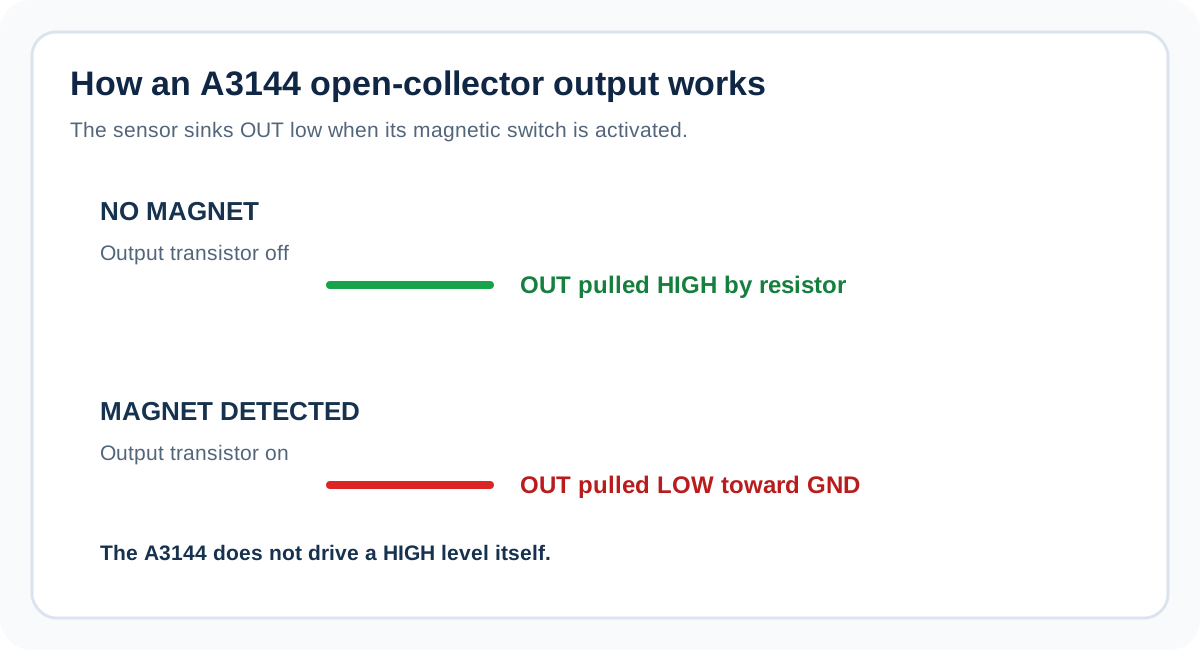
Output states and logic
| Physical state | A3144 output transistor | OUT voltage with a pull-up | digitalRead() |
|---|---|---|---|
| No triggering field | Off / released | HIGH | HIGH |
| Triggering field present | On / sinking current | LOW, near GND | LOW |
For this reason, example code treats LOW as “magnet detected.” If your serial output appears inverted, first verify the output wiring, pull-up, and magnetic pole/orientation. Some modules add components that alter the signal behavior, so confirm what your particular module exposes at OUT.
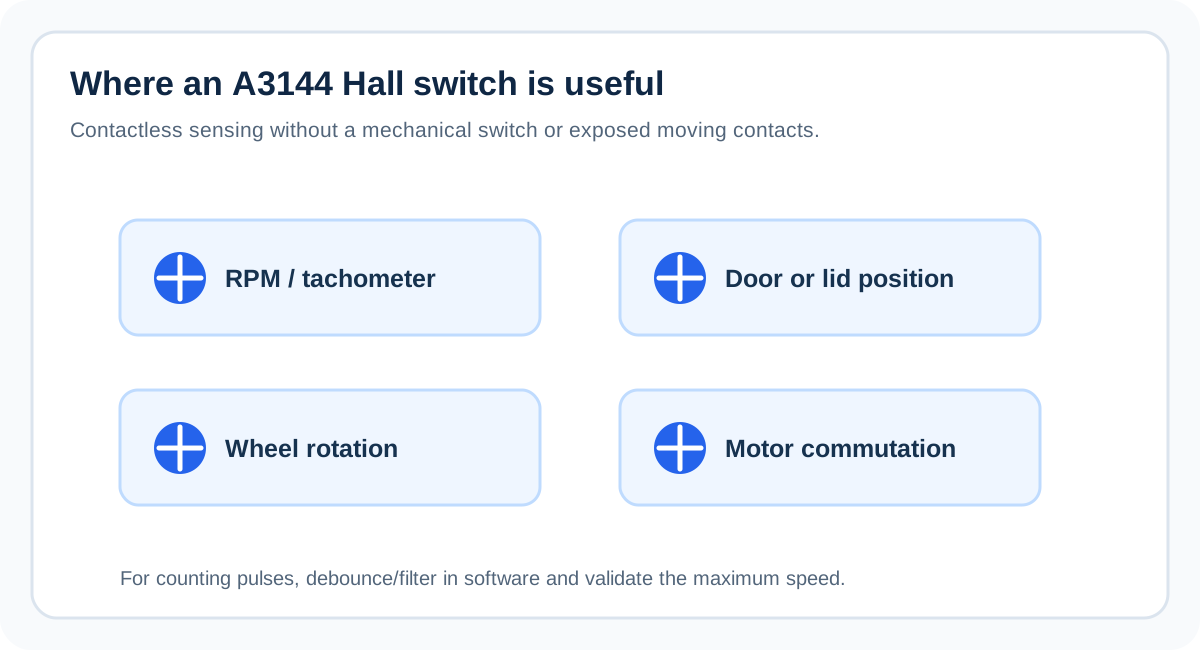
What you can build
- RPM counter: place a magnet on a rotating shaft or wheel and count each active pulse. For one magnet per revolution, RPM equals pulses per minute. For multiple magnets, divide by the number of pulses per revolution.
- Wheel-speed sensor: detect a magnet attached to a wheel and convert pulse frequency to speed using wheel circumference and magnet count.
- Door or lid detector: position a magnet so the sensor changes state when the door closes or opens. Design the mounting so the magnet cannot strike the sensor.
- Position or end-stop indicator: detect whether a moving mechanism has reached a particular location. A Hall switch is not a substitute for a safety-rated limit switch in machinery where failure could cause injury.
- Motor feedback: detect a rotating magnetic target. Motor commutation requires appropriate sensor placement, pole count, timing, and driver design; a single sensor alone may not provide all the signals a controller needs.
Wiring and design best practices
- Check the exact sensor. Bare A3144 parts, compatible replacements, and breakout modules are not interchangeable by appearance alone. Verify supply range and pin order.
- Share ground. The sensor and microcontroller need a common GND reference, even when the output pull-up is connected to a separate logic rail.
- Use the right pull-up voltage. Use the Uno’s internal pull-up for a simple 5 V Uno setup. For ESP32, pull OUT to 3.3 V with a resistor. If a module has a built-in pull-up to 5 V, do not connect it directly to an ESP32 GPIO; remove/disable that pull-up if appropriate or use a suitable level shifter.
- Keep leads short. Long wires pick up noise. Route the signal away from motor and relay wiring; add filtering or software debounce if needed.
- Count edges, not repeated states. For RPM measurement, count transitions and measure the interval between them. Printing the current state every few milliseconds is not the same as counting revolutions.
- Test the target magnet. Slowly move the magnet across the sensing face, try the pole specified by the datasheet, and check both activation and release.
- Treat the sensor as a switch. The A3144 does not report field strength or distance. If you need analog field measurements, choose an analog Hall sensor or a suitable digital magnetic sensor with the required interface.
Troubleshooting
| Symptom | Likely cause | What to check |
|---|---|---|
| OUT always reads HIGH | No triggering field, wrong pole/orientation, sensor not powered, or open output with pull-up | Verify VCC/GND, test the specified pole close to the sensing face, and check pin order. |
| OUT always reads LOW | OUT shorted to GND, incorrect pinout, damaged sensor, or field permanently present | Disconnect OUT from the board and test safely; inspect for solder bridges and wiring errors. |
| ESP32 resets or GPIO behaves unpredictably | Incorrect wiring, 5 V pull-up on GPIO, or noisy supply | Ensure OUT is pulled up only to 3.3 V; verify common ground and supply stability. |
| Sensor works on bench but not with a motor | Electrical noise, long wires, weak magnet, or unsuitable placement | Shorten/route signal wiring, improve mounting, and add measured filtering if necessary. |
| RPM count jumps at low speed | Repeated polling counts a held state or signal noise creates extra edges | Count only transitions; add a sensible debounce interval and validate with known revolutions. |
| It triggers at a different distance than expected | Different magnet strength, pole, angle, air gap, or device threshold | Test the real magnet and consult the exact manufacturer datasheet. |
Frequently asked questions
Is the A3144 analog or digital? It is a digital Hall-effect switch. Its output indicates a threshold crossing; it does not measure magnetic field strength as an analog voltage.
Does OUT need a resistor? OUT needs a pull-up to become HIGH. The Uno’s internal pull-up is suitable for a short basic circuit. The ESP32 example uses an external 10 kΩ pull-up to 3.3 V. A module may already contain a pull-up, so inspect it before adding another.
Can I power a bare A3144 from 3.3 V? Do not assume so. The commonly documented A3144 supply range starts around 4.5 V. Use the datasheet for your exact part. A breakout advertised as 3.3 V compatible may include a different sensor or additional circuitry.
Can I connect a 5 V A3144 directly to an ESP32? Not if OUT can rise to 5 V. Use an open-collector arrangement with a pull-up to 3.3 V and ensure there is no hidden 5 V pull-up on the module, or use a suitable level shifter.
Will every magnet trigger it? No. Magnetic pole, orientation, strength, gap, and the device’s operate/release thresholds determine whether it switches.
Can it measure RPM? Yes. Count one or more output pulses per revolution and calculate RPM from the measured pulse rate. Add filtering for noise and use an interrupt or edge-timing approach when speed increases.
Is the simulator proof that my physical circuit works? No. The saved circuit helps you inspect connections and code, but magnetic sensing depends on real field strength and orientation. Test the actual component on the bench before relying on it in a finished product.
Continue learning: Arduino Uno pinout · ESP32 pinout · Hall-effect sensor projects · Explore SolderHub Simulator
Setting Up A3144 with ESP32 DevKit
This guide connects a bare A3144 Hall-effect switch to a classic 38-pin ESP32 DevKit and reads its active-LOW output on GPIO27. The supply and logic rails must be treated separately: the bare A3144 commonly needs 4.5 V or more, while the ESP32 GPIO is a 3.3 V input. Power the sensor from the board’s 5 V/VIN rail, but use a 10 kΩ pull-up from OUT to 3.3 V.
Danger
**Never pull GPIO27 up to 5 V.** This wiring assumes the sensor OUT is an open-collector node and no onboard module resistor pulls it up to 5 V. If you have a breakout module with a built-in 5 V pull-up, do not connect it directly to the ESP32; use a verified 3.3 V-safe output or an appropriate level shifter.
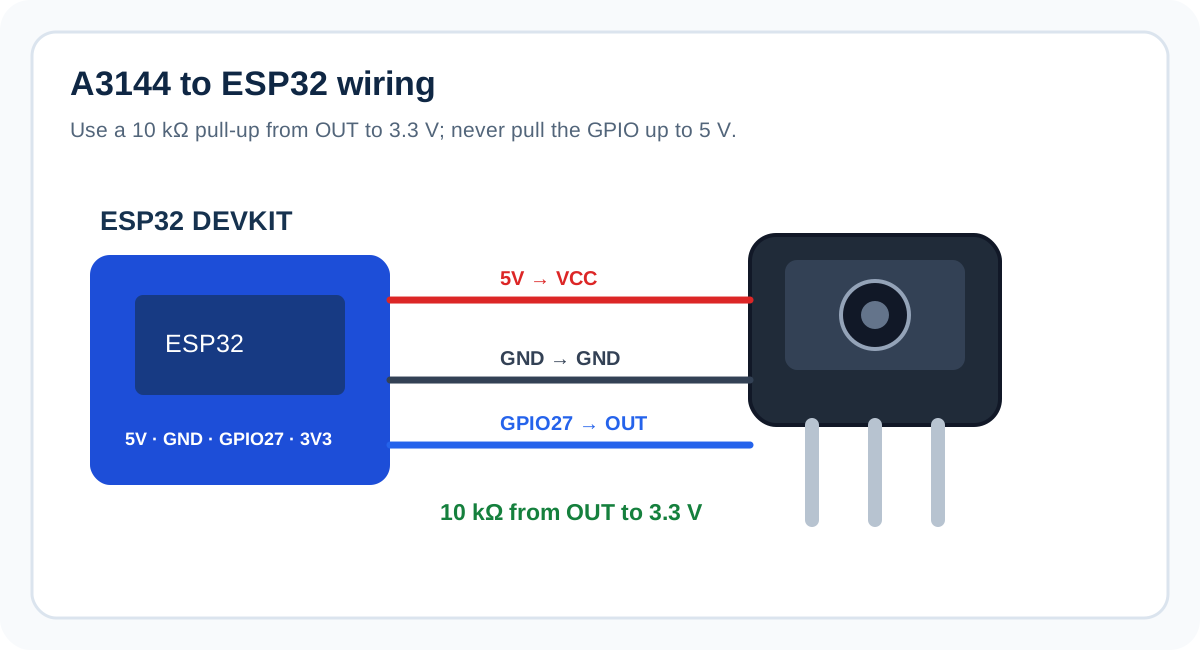
Wiring: A3144 to ESP32 DevKit
| A3144 / resistor | ESP32 connection | Reason |
|---|---|---|
| A3144 VCC | 5V / VIN | Bare A3144 supply; verify the exact datasheet. |
| A3144 GND | GND | Common ground is essential. |
| A3144 OUT | GPIO27 | Digital input; active LOW. |
| 10 kΩ resistor | Between OUT and 3V3 | Sets the released HIGH level to 3.3 V, not 5 V. |
Swipe sideways to see every column →
Try this circuit — SolderHub Simulator
The circuit is preloaded for exploration. Confirm simulator behavior against the real wiring and sensor datasheet before connecting hardware.
- 1Identify the bare sensor pins from the exact datasheet; do not assume a breakout board has the same pin order.
- 2Connect A3144 VCC to the ESP32 board’s 5V/VIN rail and A3144 GND to GND.
- 3Connect OUT to GPIO27.
- 4Add a 10 kΩ resistor between OUT and the ESP32 3V3 rail. Confirm no other module circuitry pulls OUT to 5 V.
- 5Upload the sketch and open Serial Monitor at 115200 baud.
- 6Move the magnet slowly across the sensing face and verify the output changes.
Expected Serial Monitor output
At 115200 baud, the sketch prints No magnet detected when OUT is released HIGH and Magnet detected when the sensor pulls OUT LOW. Repeated messages are expected every 200 ms. The sketch is a wiring and logic test, not a high-speed tachometer.
Troubleshooting
- Always HIGH: verify 5 V supply at the sensor, common ground, pin order, pull-up connection, and magnet orientation.
- Always LOW: check for a short to GND, incorrect wiring, a permanently active magnetic field, or a damaged sensor.
- ESP32 behaves unpredictably: confirm the OUT node cannot rise above 3.3 V and keep signal wiring away from motor drivers.
- No Serial Monitor output: select the correct serial port and 115200 baud.
- Your board lacks GPIO27: choose a safe, available digital GPIO on that ESP32 variant and update the sketch. Pin availability differs across ESP32 families and modules.
Notes for production projects
For a simple state sensor, polling is fine. For pulse counting, use a GPIO interrupt or edge-timing approach and reject pulses that cannot physically occur at the expected maximum speed. Avoid doing lengthy serial printing inside an interrupt service routine. If the cable is long, the environment is noisy, or the magnet spins quickly, validate the waveform with an oscilloscope or logic analyzer and adjust pull-up strength and filtering based on measured behavior.
FAQ
Why power the sensor from 5 V if ESP32 uses 3.3 V? The common bare A3144 supply range begins around 4.5 V. Its open-collector output can still be pulled up to 3.3 V, provided no extra circuitry drives OUT to 5 V.
Can I use the ESP32 internal pull-up? This guide uses an external 10 kΩ pull-up so the signal level and wiring are explicit. Do not enable any pull-up that connects OUT to a 5 V rail. For the exact board and module, verify the resulting voltage at the GPIO.
Can I use GPIO27 on every ESP32 board? No. It is available on many classic ESP32 DevKit boards, but pin availability differs across ESP32 variants. Check the pinout for your specific board.
Related Components

DHT11
The classic beginner temperature and humidity sensor — cheap, factory-calibrated and supported on every board.

DS18B20
The 1-Wire digital thermometer that survives water, soil and long cables, with a unique address so many probes can share one pin.
HC-SR04
The most reliable ultrasonic distance sensor — measure 2cm to 4m with just two GPIO pins.
Related Guides & Projects
MicroPython vs Arduino on ESP32: Which Should You Learn First?
An honest comparison for beginners: where MicroPython is easier, where Arduino C++ is faster, how libraries and memory differ, and how to choose based on your project instead of hype.
MicroPython ESP32 Web Server: Control an LED or Relay from Your Browser
Create a working web server with the socket module, parse requests, serve a responsive control page for an LED or a relay, keep the displayed state truthful, choose a safe relay startup state and make the server survive bad or repeated requests.
MicroPython on ESP32 and Raspberry Pi Pico W: The Complete Guide
A structured MicroPython learning path for ESP32 and Pico W. Set up your tools, control GPIO, read sensors, connect to WiFi, build web servers, publish MQTT data and make projects reliable. Start here, then follow the links by level.
boot.py vs main.py in MicroPython: What Runs, When and Why
Understand the difference between boot.py and main.py in MicroPython, startup order, Wi-Fi setup, project structure, and recovery from boot errors.